在終端機中使用 Stylebot
讓 Claude Code、Codex、Cursor 等程式設計代理直接在你的瀏覽器中修改網站樣式。
開始設定
為 Chrome 或 Edge 安裝 Stylebot
安裝並連接 CLI
$ npm install -g @stylebot/cli$ stylebot install開啟命令列存取
在 Stylebot 的選項中開啟基本 › 允許命令列存取。
為代理加入 Stylebot 技能 選用
這項技能會教代理用 CLI 修改頁面樣式。
$ claude plugin marketplace add ankit/stylebot$ claude plugin install stylebot$ codex plugin marketplace add ankit/stylebot$ codex plugin add stylebot@stylebot$ copilot plugin marketplace add ankit/stylebot$ copilot plugin install stylebot@stylebot在 Cursor、VS Code 中的 Copilot 或其他代理中,將技能資料夾複製到代理的技能資料夾,例如
~/.cursor/skills/。
Stylebot CLI 模式
連接分頁
請代理用 Stylebot 監看頁面,然後在分頁上點選 [連線]。
在 Claude Code 中:
$ /stylebot watch
標記要修改的地方
在頁面上拖曳以標記,然後輸入留言並按下 Enter 鍵。
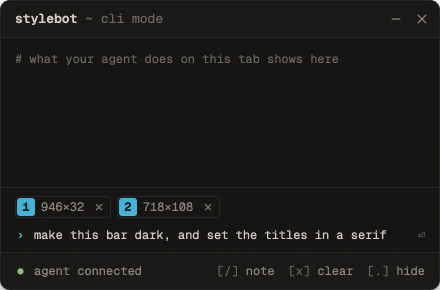
查看每項修改
終端機會顯示代理做了什麼,每次儲存都有 [復原]。
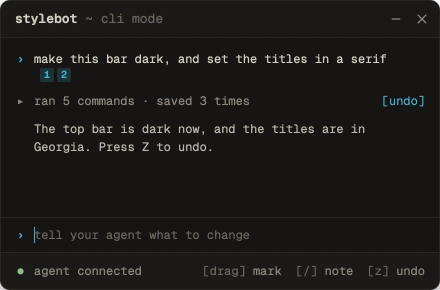
也可以不做標記,直接請代理改樣式,例如「幫 Hacker News 換個深色主題」。
隱私權
命令列存取在你開啟之前都是關閉的。開啟後,這台電腦上的應用程式可以讀取你開啟的頁面、擷取螢幕畫面並變更你的樣式。隨時可以在 Stylebot 的選項中關閉。
Stylebot 和 CLI 只在這台電腦上彼此溝通,不會把任何資料傳送到別處。代理則會把讀取到的內容傳送給它自己的供應商,例如 Claude Code 會傳送給 Anthropic。