Stylebot from your terminal
Let a coding agent like Claude Code, Codex or Cursor restyle sites right in your browser.
Set it up
Install Stylebot for Chrome or Edge
Install the CLI and connect it
$ npm install -g @stylebot/cli$ stylebot installTurn on command line access
Enable Basics › Allow command line access in Stylebot’s options.
Add the Stylebot skill to your agent Optional
It teaches your agent to restyle pages with the CLI.
$ claude plugin marketplace add ankit/stylebot$ claude plugin install stylebot$ codex plugin marketplace add ankit/stylebot$ codex plugin add stylebot@stylebot$ copilot plugin marketplace add ankit/stylebot$ copilot plugin install stylebot@stylebotIn Cursor, Copilot in VS Code or another agent, copy the skill’s folder into the agent’s skills folder, such as
~/.cursor/skills/.
Stylebot CLI mode
Connect a tab
Ask your agent to watch the page using Stylebot, then click [connect] on your tab.
In Claude Code:
$ /stylebot watch
Mark what to change
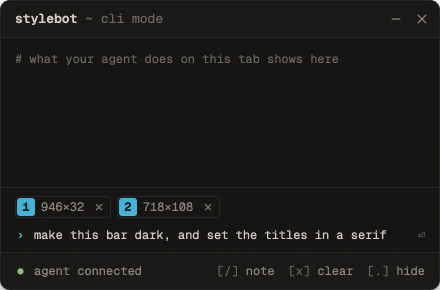
Drag over the page to mark it, then type a note and press Enter.
See each change
The terminal shows what your agent did, with an [undo] for each save.
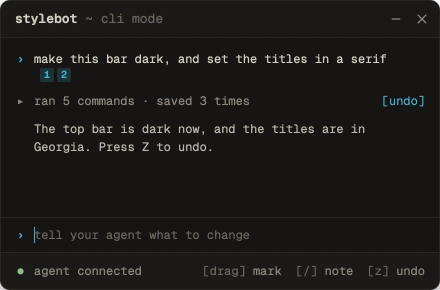
Or skip marking and just ask your agent for a look, such as “give Hacker News a dark theme”.
Privacy
Command line access is off until you turn it on. While it's on, apps on this computer can read your open pages, take screenshots and change your styles. Turn it off in Stylebot's options at any time.
Stylebot and the CLI talk only to each other, on this computer, and send nothing anywhere. An agent sends what it reads to its own provider, as Claude Code does to Anthropic.